How to Force I/O in Studio 5000 for PLC Troubleshooting
Facing PLC System Device or Hardware Issues?
PLC device failures in systems like chemical plating or mining conveyors can halt production. Forcing I/O in Studio 5000 for PLC troubleshooting lets you test inputs and outputs to diagnose hardware issues quickly. This guide shows how to use Studio 5000 with Allen-Bradley PLCs like CompactLogix or ControlLogix to resolve problems efficiently.
Why Force I/O in Studio 5000?
Forcing I/O overrides input or output states to simulate conditions, helping isolate faulty sensors, actuators, or wiring. It’s ideal for troubleshooting ControlLogix or CompactLogix systems without altering logic, ensuring safe diagnostics in industrial environments.
How to Force I/O in Studio 5000
Access Controller Tags: In Studio 5000, open your project, go to the Controller Organizer, and select “Controller Tags.” Locate the I/O tag (e.g., Local:1:I.Data for inputs or Local:1:O.Data for outputs).
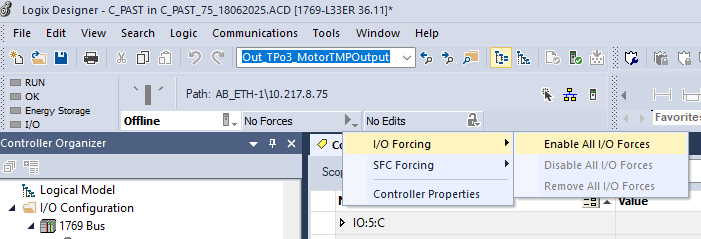
Enable Forcing: Turn on Forces in the PLC Controller.
Forcing IO: Ensure you are online with the PLC Logic. Right-click the tag, select “Monitor,” and enable forcing via the “Force On” or “Force Off” option.
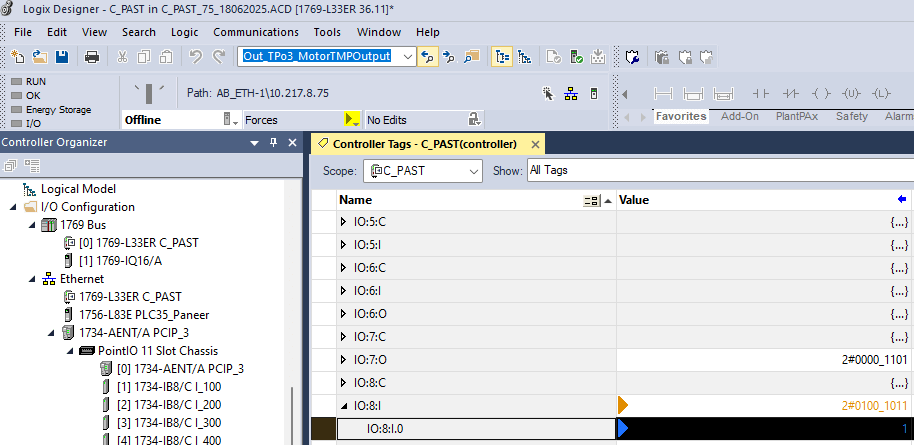
Force Inputs: For a sensor issue (e.g., in a plating system), force an input tag to “1” to simulate activation. Check if the PLC responds correctly. The image below shows what it looks like when Forces are enabled in the Controller and the input is forced on.
Force Outputs: To test an actuator, force an output tag to “1” (e.g., to activate a valve). Verify physical response to isolate wiring or device faults.
Remove Forces Safely: After testing, disable forces (right-click tag > “Remove Force”) and return the PLC to Run mode to avoid unintended operation.
Follow Rockwell’s safety guidelines to prevent equipment damage.
Resolve PLC Issues Fast
Forcing I/O in Studio 5000 simplifies troubleshooting for reliable automation. Ready to fix your PLC? Explore more helpful troubleshooting tips at Studio 5000 Logix Designer Online Help here. Let Automation Ready Panels design and program your next PLC control system today! Contact Us
In our last project, schedule and quality were very good.�? Also, the coordination and help during installation was good.
Metro Sewer District
David, Senior Electrical Engineer
Would Recommend to Anyone
As far as the internal wiring of the enclosures, I did not find a single wiring error.�? That is very impressive considering the number of enclosures we ordered. I want to thank everyone for the great work.
Brewing Company
Steve, Project Manager
Excellent Customer Support
I receieved excellent customer support, and quickly. Thank you so much!
Oil and Gas
John Herman, Controls Engineer
Great Product.
We needed a simple, easy-to-install chemical addition and mixing control system. Started up without an issue. Our operators seem pleased with the outcome!