5 Quick Fixes for Common Studio 5000 Errors in 2025
PLC Errors Slowing You Down?
Running into errors in Allen Bradley Studio 5000 can halt your automation projects. Our Studio 5000 troubleshooting 2025 guide offers five quick fixes for common issues like communication failures and program faults. Keep your PLC systems running smoothly with these practical solutions.
Why Studio 5000 Errors Happen
Errors in Studio 5000 often stem from communication issues, configuration errors, or outdated firmware. These can disrupt PLC operations in applications like process or production machines. Below are five common errors and their fixes, updated for 2025.
5 Quick Fixes for Studio 5000 Errors
Connection Failure: Verify your FactoryTalk Linx configuration and ensure the PLC’s IP address matches the project settings. Restart FactoryTalk Linx to refresh the connection.
Task Overlap Error: Check the Task Monitor tool for overlapping scan times. Adjust task priorities or increase the scan period in the Task Properties.
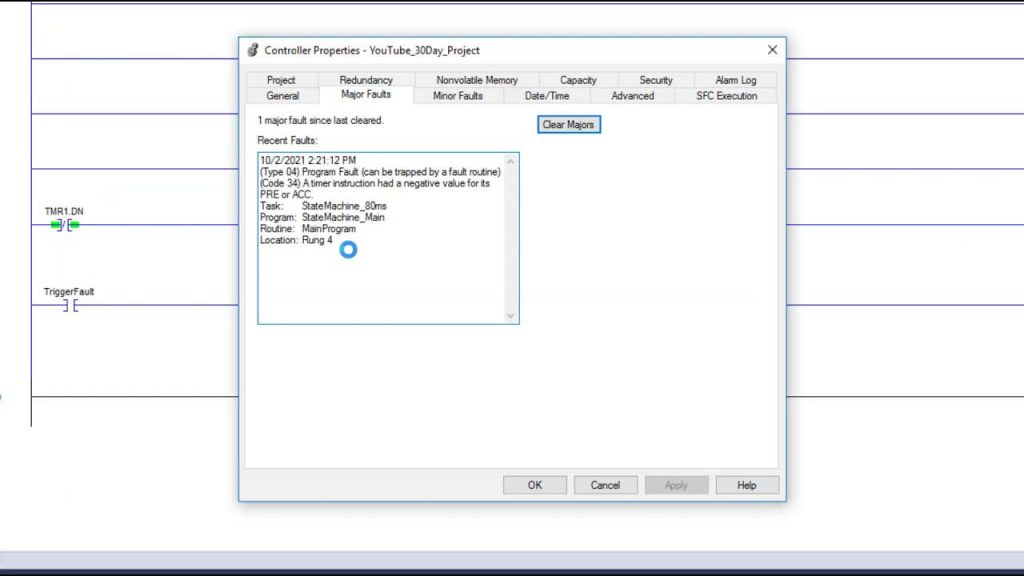
Controller Fault: Check in the controller properties for any minor or major faults that may have caused the processor to be faulted. Search Rockwell Knowledgebase for possible resolutions.
Firmware Mismatch: Update the PLC firmware to match Studio 5000’s version (e.g., v37 for 2025). Use the ControlFLASH Plus tool for safe updates.
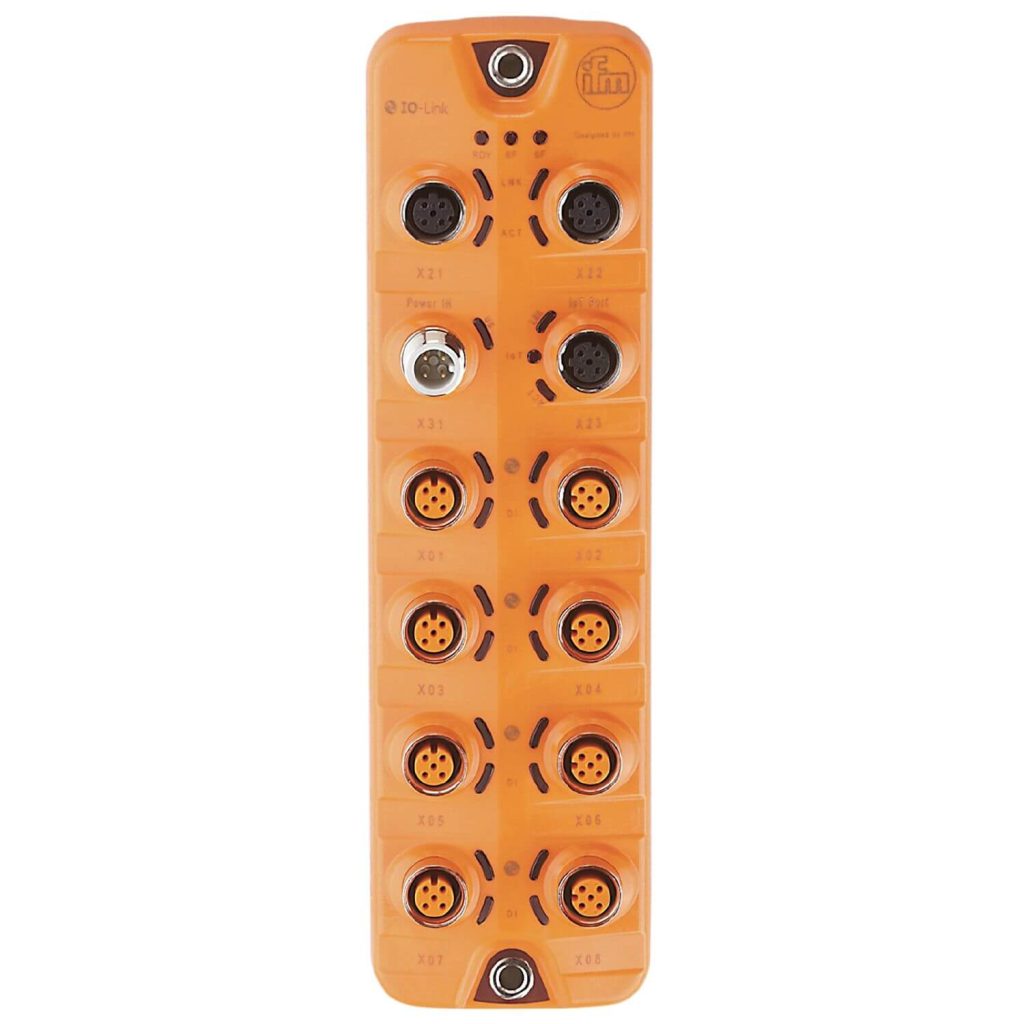
IO Device Fault: Look in the lower left IO tree and check for any yellow caution triangles on any IO connected to the PLC. Also look in the Top Left for the LED that normally reads “IO Ok”. If that reads anything other than IO Ok, check the IO tree below. Double-click on the faulted device and get the fault code to further troubleshoot.
Get Back Online Fast
These Studio 5000 troubleshooting 2025 fixes can save you hours of downtime. Which error are you facing? Explore more helpful troubleshooting tips at Studio 5000 Logix Designer Online Help here. Let Automation Ready Panels design and program your next PLC control system today! Contact Us
In our last project, schedule and quality were very good.�? Also, the coordination and help during installation was good.
Metro Sewer District
David, Senior Electrical Engineer
Would Recommend to Anyone
As far as the internal wiring of the enclosures, I did not find a single wiring error.�? That is very impressive considering the number of enclosures we ordered. I want to thank everyone for the great work.
Brewing Company
Steve, Project Manager
Excellent Customer Support
I receieved excellent customer support, and quickly. Thank you so much!
Oil and Gas
John Herman, Controls Engineer
Great Product.
We needed a simple, easy-to-install chemical addition and mixing control system. Started up without an issue. Our operators seem pleased with the outcome!